
How do I set up a Kiosk?
Originally written in English, any translations errors should be checked against the original atricle
Requirements
- Premium subscription
- Payments account
- Payment Terminal
- Kiosk PC, iPad with webcam
- Beta features enabled
1. Create the kiosk
Go to settings -> Kiosks -> Settings
Click on the purple button on the bottom of the page to add a new Kiosk.
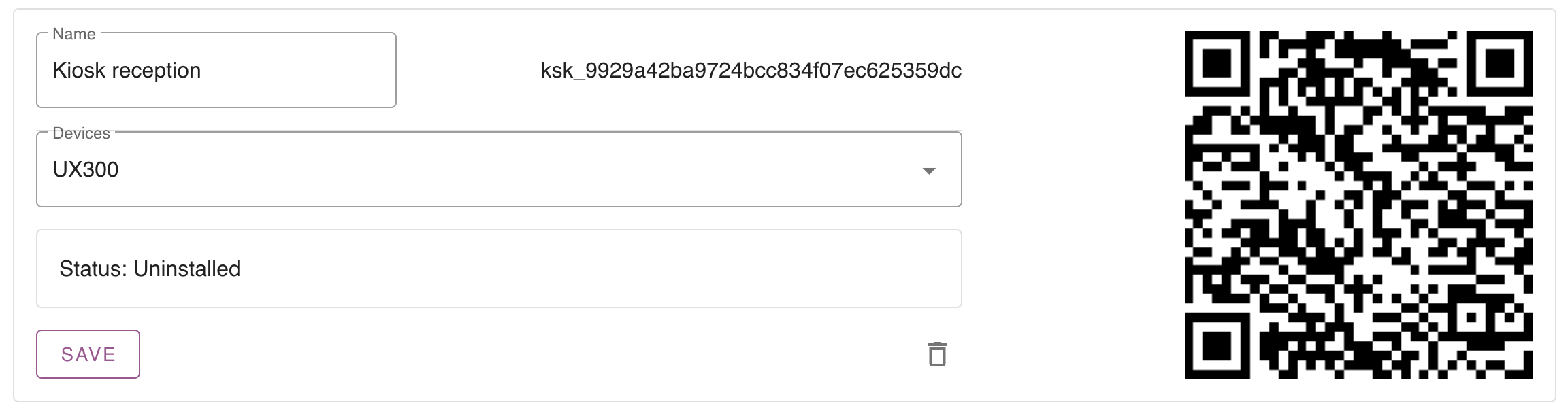
By default the status is uninstalled. This means it’s not connected to a physical Kiosk.
Now select your pin terminal and name your kiosk. Save the kiosk so you can proceed.
2. Configure the Kiosk
Create a code workflow
To login into the kiosk we have to create a 6 figure code for each reservation. This can be done by creating a workflow on ‘reservation created’.
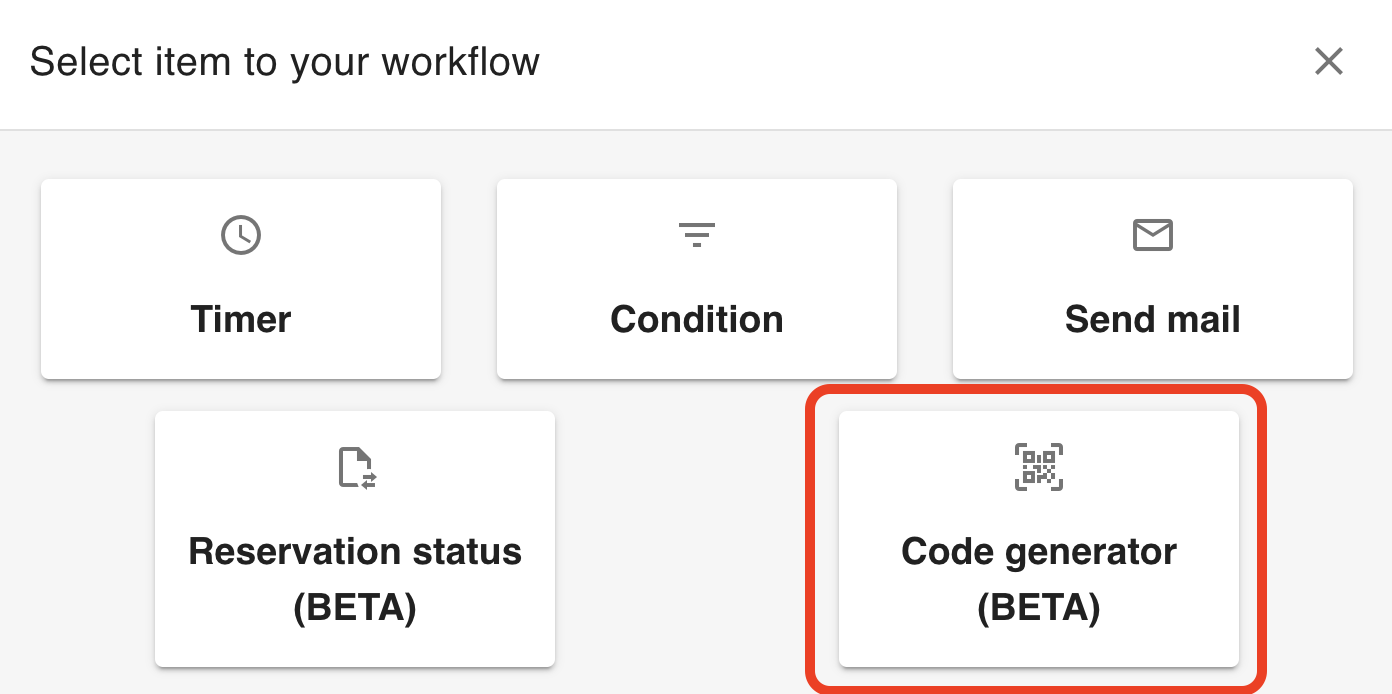
Set the required fields for the kiosk
What data do you need before someone can check-in? You can set these fields specific for the Kiosk. If you go to Settings -> Kiosk -> Form setup you are able to select what fields are required to check-in via the Kiosk.
3. Install the Kiosk
Once your Kiosk configuration is complete, you are able to install the kiosk. Simply go to https://kiosk.care and you will find the following install screen.
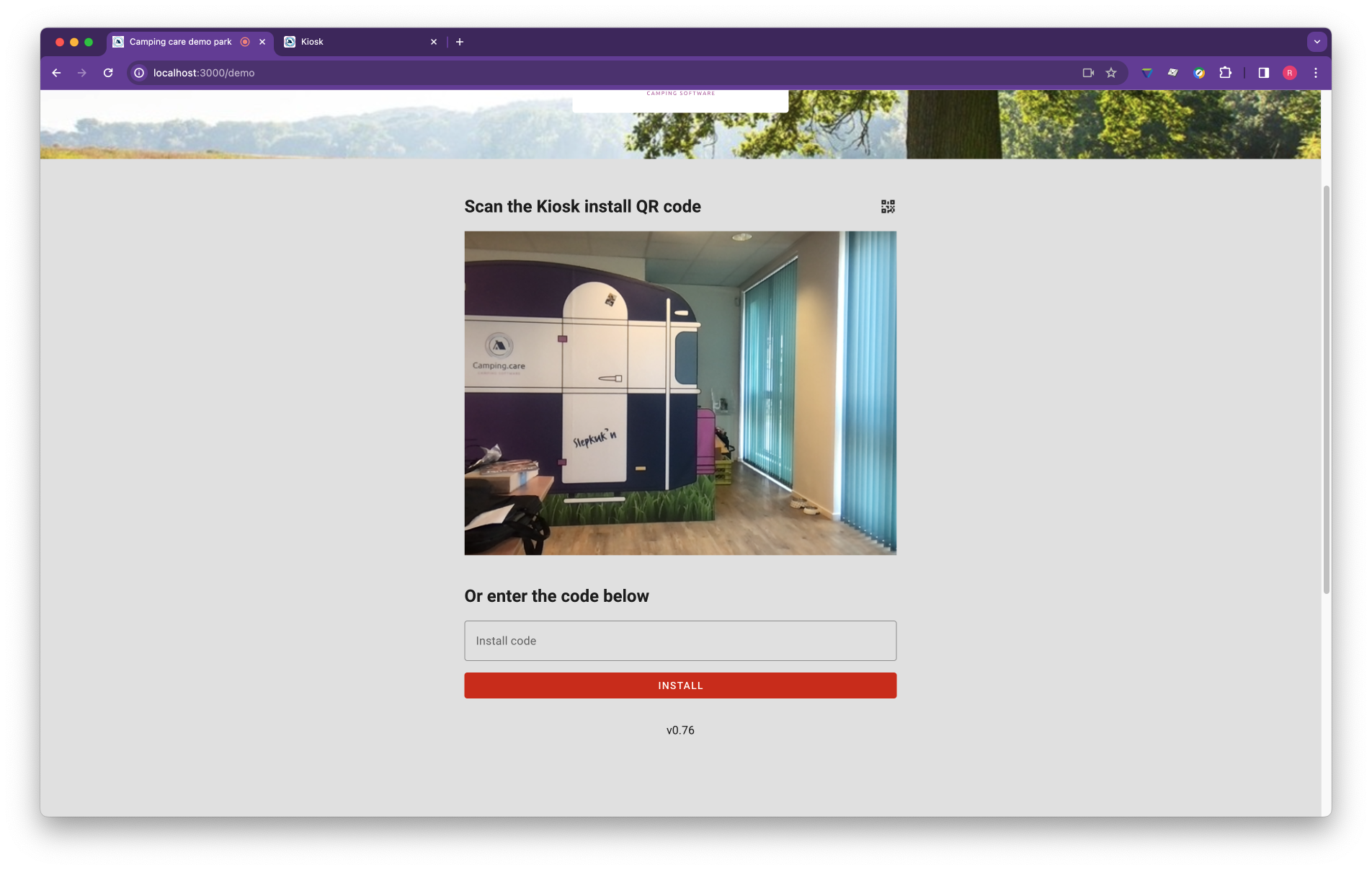
Scan QR code
The browser will ask you to use the camera. Allow this with each visit, in order to scan QR codes.

Scan the QR code generated in the first step (At the kiosk settings).
Manual install
Copy the kiosk ID (the ID starting with ksk_ in you kiosk settings screen) and copy it into the Kiosk install screen. Then hit install and the kiosk will be connected to your backoffice.
4. Run the Kiosk in full screen / Kiosk mode
When visitors use the Kiosk you don’t want them to change / modify anything on the device. For this it’s important to use run our Kiosk application in Kiosk mode. All the operating systems offer such an option, with some systems it’s easier than with others.
We have setup an tutorial with an iPad and with Chrome OS how to do this.
Install the Kiosk on an iPad
https://support.camping.care/en/install-the-kiosk-on-an-ipad
Install the Kiosk on Google Chrome and Google workspace
https://support.camping.care/en/how-do-i-setup-an-kiosk-with-chrome-os
Windows or Linux does offer the same functionality. However there are tons of tutorials available on the internet to do this, we have not made them yet.
Read more
– How do I send an reservation from the backoffice to the Kiosk
 English
  Dutch
Dutch  German
  French
  Spanish
  Portuguese
  Italian
  Finnish
  Danish
  Bulgarian
  Swedish