
-
Backoffice / PMS
-
- What are iCal feeds? And what can I do with them.
- How to set up products under accommodations
- Cancellations
- Setting period conditions
- Accommodations overview
- Add new accommodation
- Adding Prices / Rates to an accommodation
- Discounts
- Taxes
- Options
- Places / Rooms / Objects
- Accommodation settings
- How to set up an accommodation?
-
- How can I work with report lists?
- How do I change the next invoice number?
- Delay invoice finalization.
- How do I send PDF or UBL invoices to my Accountancy System automatically?
- Direct payment links
- How to work with ledger accounts
- Invoice branding for e-mails
- How does the invoice screen looks like
- What is the difference between concept and final invoices?
- How do I add a product to the invoice?
- How to finalize an invoice?
- How do I print the final invoice?
- What is a UBL invoice?
-
- How can I work with report lists?
- How can guest information be overwritten?
- How does the Scan Document work?
- Adding guests
- Form setup
- Guests settings
- How to send an email to the guest manually
- How do i modify the informations of the guest?
- How do guest languages work?
- How do custom fields work?
- How to Create and Use a Blocked Guest List
-
- How can I work with report lists?
- Copy a reservation.
- How can guest information be overwritten?
- How does the Scan Document work?
- Price calculation error codes
- Cancellations
- Remove a reservation from a group booking
- Form setup
- Combine two bookings
- Add a existing booking to a group booking
- Add a new booking to a group
- Split a booking
- Remove a period within a booking
- Add days to a booking
- Cancellation of a booking in a group
- How to add a payment to a reservation
- How to add or change a place / room / object in a reservation
- Traveller info
- How do I change the place of a reservation?
- How to add a payment to a reservation?
- How to send an email to the guest manually
- How do I change the communication language for a reservation?
- How do i modify the informations of the guest?
- Create a new reservation (Backend)
- How do I export reservation data to excel?
- Can I save my custom reservations list?
- How do cancellations work?
- What kind of reservation statuses are there?
- How do I change the status of a booking?
- How do I make a reservation?
- How do custom fields work?
- How to Create and Use a Blocked Guest List
- Show Remaining Articles (17) Collapse Articles
-
- What are iCal feeds? And what can I do with them.
- Balances
- How do I change the next invoice number?
- VAT Groups
- Online Booking Settings
- Workflows
- How do I enable the BETA Features?
- How do I prevent emails to be marked as Spam?
- How to setup two factor authentication (2FA)
- How do I set up a Kiosk?
- Special dates
- Form setup
- E-mails
- Discount cards
- Interactive map settings
- Fields
- How to work with ledger accounts
- Invoice branding for e-mails
- Users
- Form setup
- Roles
- Providers & methods
- Online Booking Settings
- Website Integration
- Invoice settings
- License Plates
- Administration images
- Tags
- Guests settings
- How do age tables work?
- How do guest languages work?
- How do I login with my SSO account?
- Branding
- How do custom fields work?
- How do I change my password, user settings and username?
- Show Remaining Articles (20) Collapse Articles
-
-
Online booking
- How can i setup branding for my online booking engine?
- How do I setup the hosted online booking?
- What kind of online booking options do you provide?
- Simple and advanced filtering
- Online Booking Settings
- Form setup
- Online Booking Settings
- Website Integration
- How to setup a pre defined arrival and departure
- Why do I see a price when there's no availability?
-
App Store / Integrations
- Rate Limiter
- What is an API and do you have one?
- What is an MCP server and do you have one?
- Report your INE statistics
- Where to find the CBS statistics?
-
- Articles coming soon
-
- How to setup Chekin
- How do I setup Fiskaltrust?
- Campez Couvert App
- How to use the Datev App
- Feratel Visitor Registration
- Report your INE statistics
- Where to find the CBS statistics?
- Comprehensive Expert Analysis of German Fiscal Compliance for Property Management Systems Integrating fiskaltrust Middleware and Cloud-Based Technical Security Systems
-
Point of Sale (POS)
-
Self Service Kiosk
-
Hardware
-
Support
-
Subscriptions
This document tells you how to setup the Chekin app within Camping.care
Chekin supplies the connection to the governement and police and verifies the document numbers using online technology.
Prerequisits
You will have a subscribtion with Chekin if you create a account in our software.
Setup
Go to the settings page, there you can create your user credentials:
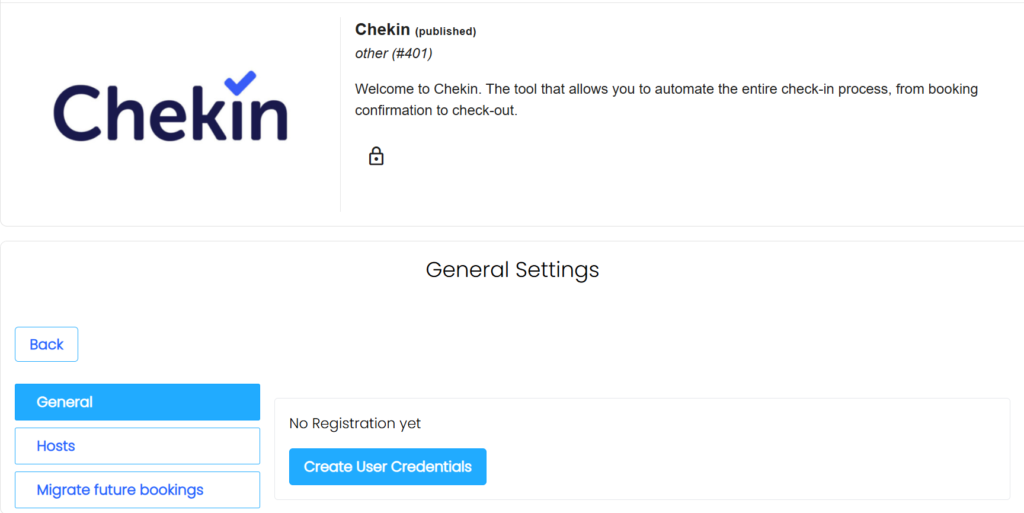
Important! If you create your user credentials via this app, you’ll be signed up with Chekin by us and we’ll charge you additional subscription fees for the Chekin connection.
After you created the credentials you will see the username in the screen.
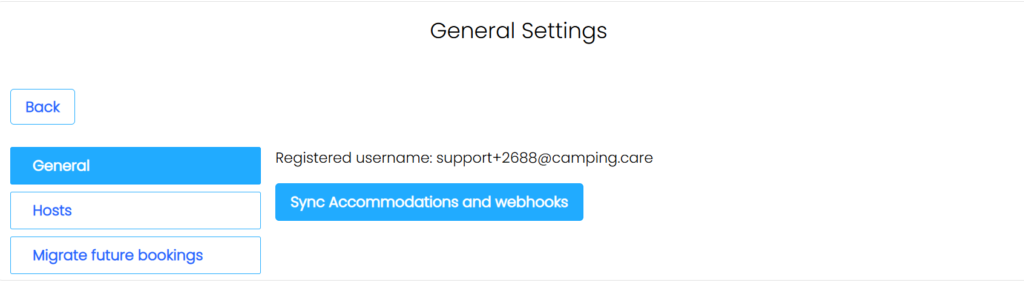
With your first creation of credentials the Camping.care accommodations will be synced to Chekin.
If you add or remove accommodations from Camping.care you have to sync the accommodations and webhooks again. If the synchronisation of the accommodations is completed we can configure the hosts.
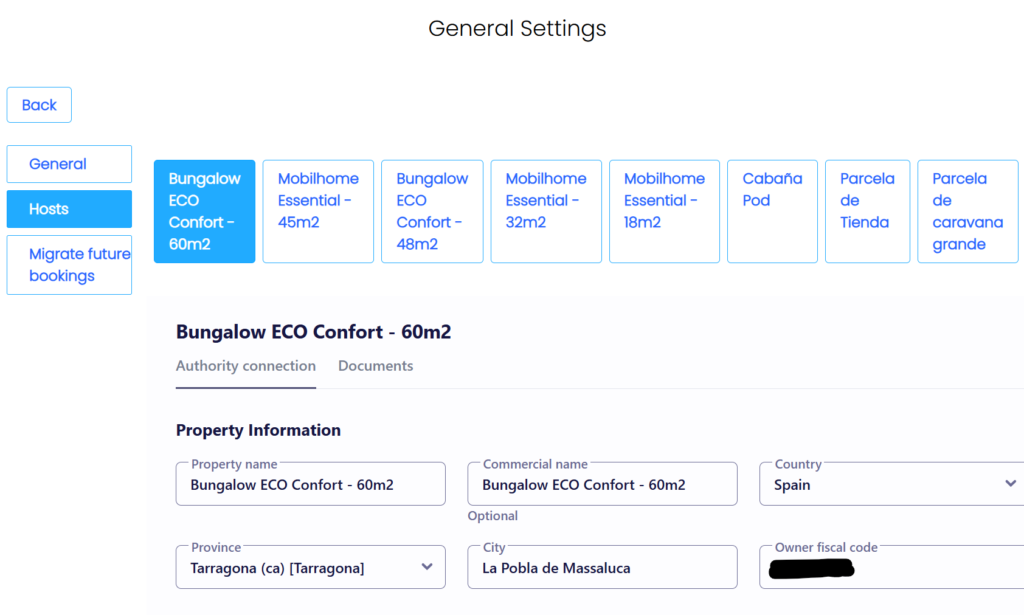
After the setup of all accommodations you can start a synchronisation for all future bookings.
Once you’ve migrated all future bookings, the setup will be Finished.
Using the guest widget
If chekin is enabled the guest widget will be visible in the guest view of every booking.

Here the guest can create the checkin with Chekin themselves. The data which is added to the chekin form will be saved in the chekin system, they will make sure that the data is sent to the police and governement.
Also the data which is saved in the chekin will be synchronized to Camping.care. We will save the data in the customer profile automatically.
Changing the guests
If there are more guests comming to the stay you can add the guests (co travelers) to the camping.care system. Automatically the change in the amount of persons will be synchronized to chekin, we also provide the first name, last name and birthdate to the new guest in the Chekin form.
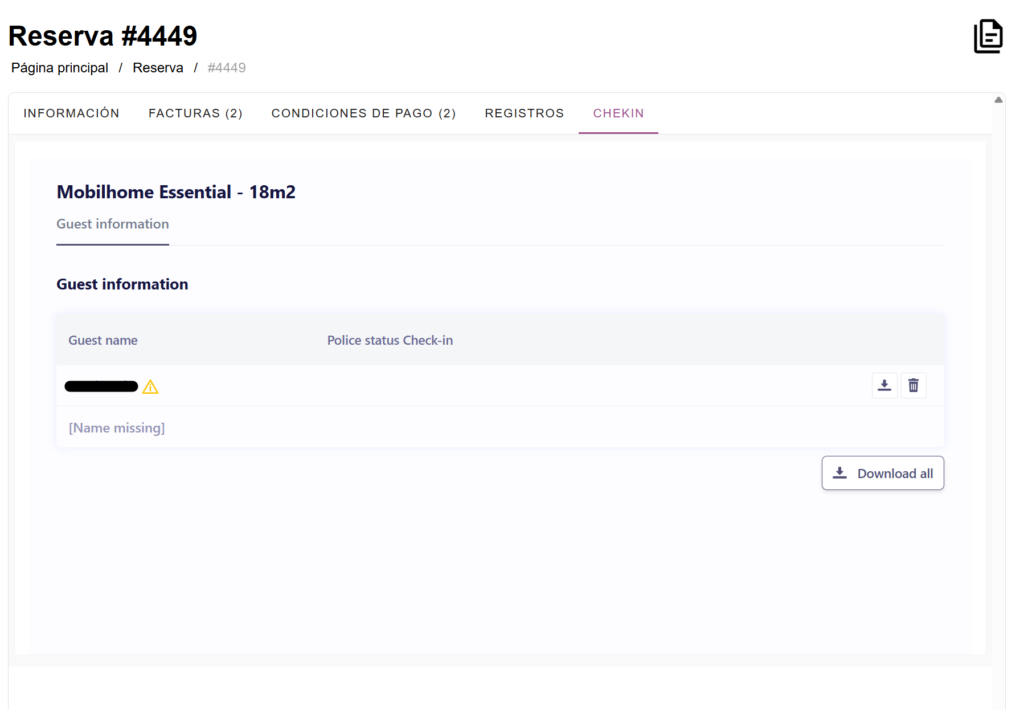
If the guests did not do the registration on the guest page you can also do it from the backoffice yourself.
There is a reservation tab which is available to fill in the form from the campsite.
Creating lists
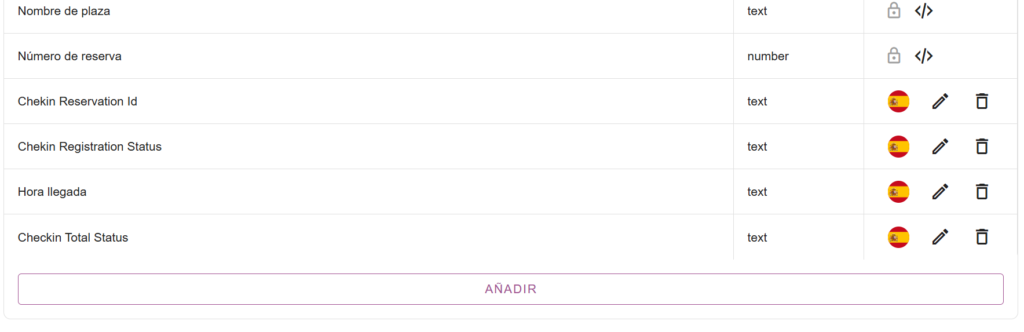
If the app is installed some extra fields will be added to the system automatically. These are registered in the reservations and the contacts:
In the lists you can also include these fields:
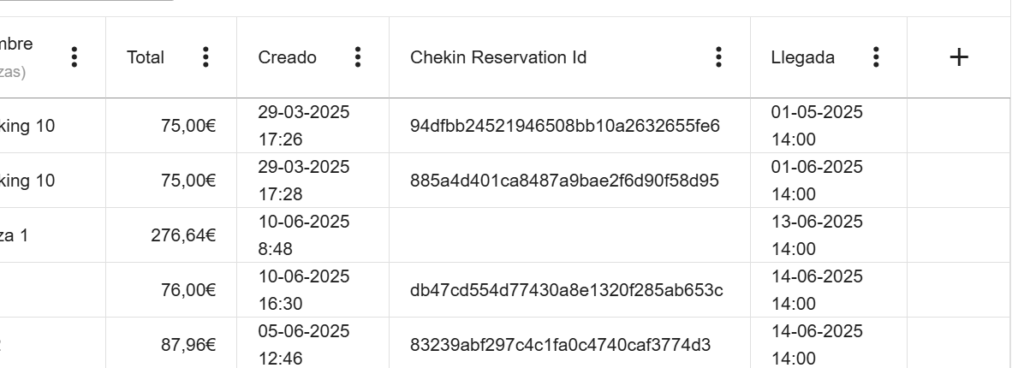
For more information about setting up the lists than you can use this tutorial.
 English
  Dutch
Dutch  German
  French
  Spanish
  Portuguese
  Italian
  Finnish
  Danish
  Bulgarian
  Swedish