
Balances
How do balances work?
balance accounts provide a flexible way to manage different payment methods and currencies, particularly for cash desks and point-of-sale (POS) systems. This system allows you to separate and track transactions, including cash and electronic payments, and even handle multiple currencies with automatic conversions.
Core Concepts: Balance Account vs. Balance
It is important to understand the distinction between a “Balance Account” and a “Balance.”
- Balance Account: A Balance Account is the primary container or category for a specific type of payment flow. For example, you can create a Balance Account for “In Person Payment Cash” to track all cash transactions, or “In Person Payment EC” for all electronic card payments. Each Balance Account can have multiple “Balances” associated with it over time.
- Balance: A Balance represents a specific, time-bound financial record within a Balance Account. This is what you “open” and “close” on a regular basis (e.g., daily, monthly, or yearly). A Balance contains a record of all payments, withdrawals, and deposits that occur during its active period. When a Balance is “closed,” it creates a snapshot of the activity for that period and an “Opening Balance” for the next period is created.
Creating a New Balance Account
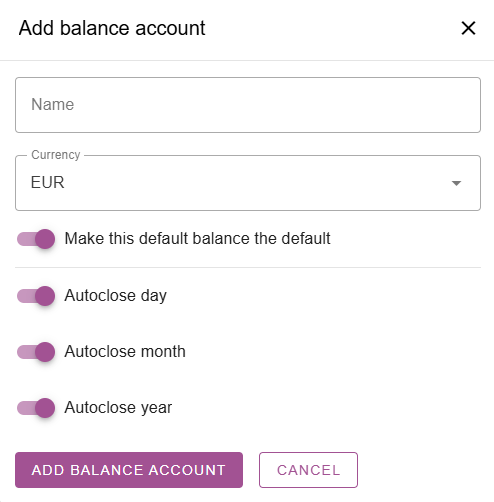
To create a new Balance Account, use the “Add balance account” interface.
- Name: Provide a clear and descriptive name for the account (e.g., “In Person Cash,” “POS Terminal 1,” “Online Payments”).
- Currency: Select the currency for this account.
- Make this default balance the default: Use the toggle to set this as the default balance account for payments.
- Autoclose: You can configure the account to automatically close its balances on a daily, monthly, or yearly basis using the respective toggles. This feature streamlines the closing process and ensures consistent record-keeping.
Balances Overview
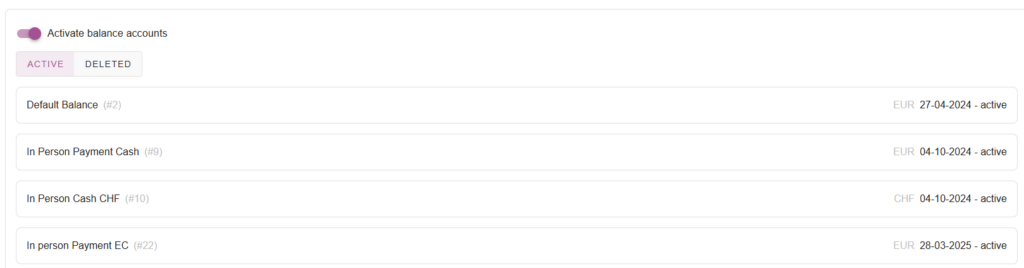
The “Balances overview” page shows all your active and deleted Balance Accounts.
- Active/Deleted Tabs: Toggle between active and deleted accounts.
- Account List: The list displays each Balance Account, including its unique ID (2, 5, 9, etc) name, currency, and the last active date.
Using Balance Accounts in the POS System
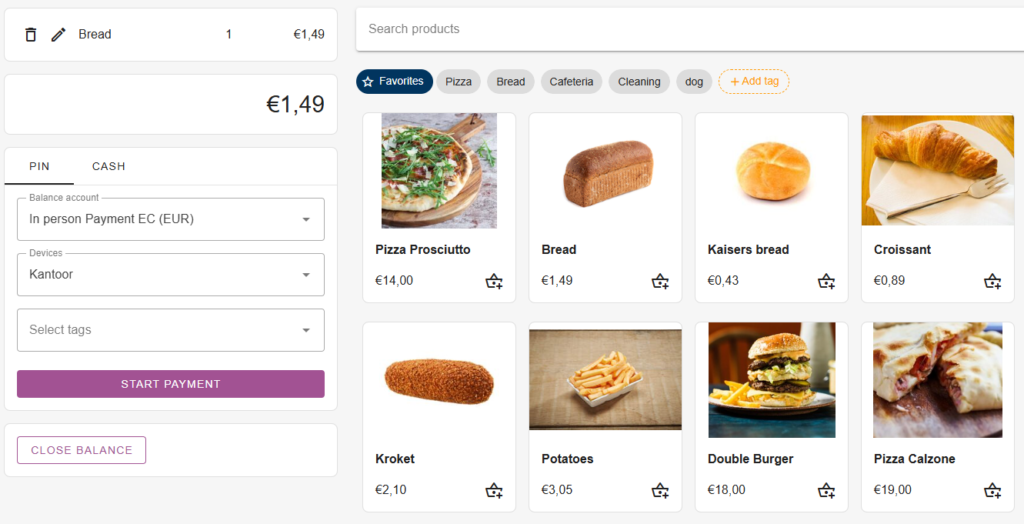
When processing a payment in the camping.care POS, you can select the appropriate Balance Account for the transaction.
- Balance Account Dropdown: Use the “Balance account” dropdown menu to select the correct account for the payment.
- Cash Payments: For cash payments, the POS interface allows you to input the amount the guest paid and will automatically calculate any change due.
- Electronic Payments (EC/PIN): For electronic payments, the system prompts you to start the payment process. You can also select the specific device if you have multiple connected terminals.
- Multi-Currency Support: If you select a Balance Account with a different currency than the POS’s default, camping.care will automatically calculate the conversion based on the current exchange rate.
Managing a Balance
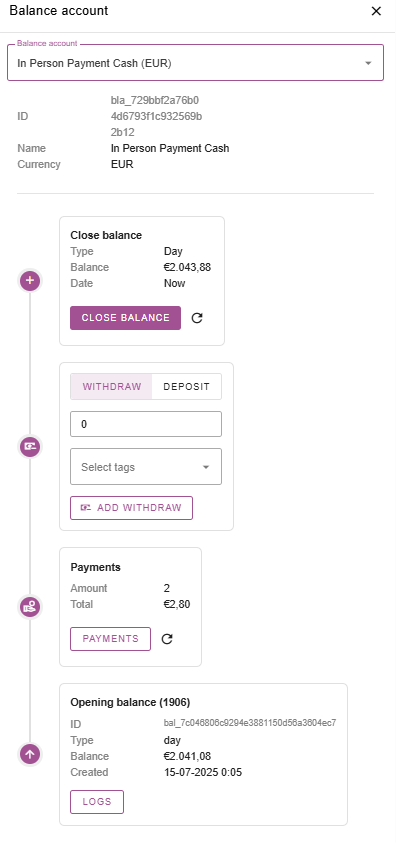
Clicking on a Balance Account from the overview page opens a detailed view of its current Balance.
- Balance Details: The top section displays the ID, Name, and Currency of the Balance Account.
- Close Balance: This section shows the current balance and provides an option to manually close it.
- Type: Indicates the type of closure (e.g., Day, Month, Year).
- Balance: The current balance amount.
- Date: The date of the closure.
- Withdraw/Deposit: You can manually record cash withdrawals or deposits into the Balance.
- Payments: This section summarizes the payments recorded within the current active Balance, showing the total number of payments and the total amount.
- Opening Balance: At the bottom, the “Opening balance” section shows the details from the last time the Balance was closed, including the balance amount and the date it was created. This helps you track the daily start of your cash desk.
 English
  Dutch
Dutch  German
  French
  Spanish
  Portuguese
  Italian
  Finnish
  Danish
  Bulgarian
  Swedish