
How do I set up an Early Bird discount?
To entice guests to book furter in advance, you might want to set up an “Early bird” discount. An Early Bird discount is applied when guests make a reservation during a certain period, regardless of when their arrival date will be.
Create a product
Select the accommodation where you want set up your discount. Then under the “Discounts” tab, click on “Add Product”:
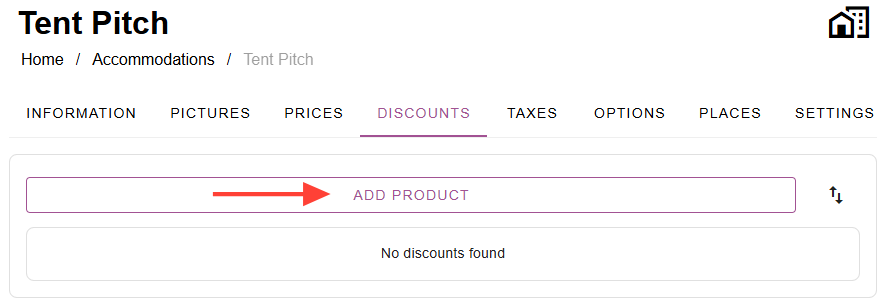
There you can select an existing product to add as an option, or create a new product. If you don’t have a Pet product yet, click on “New product”.
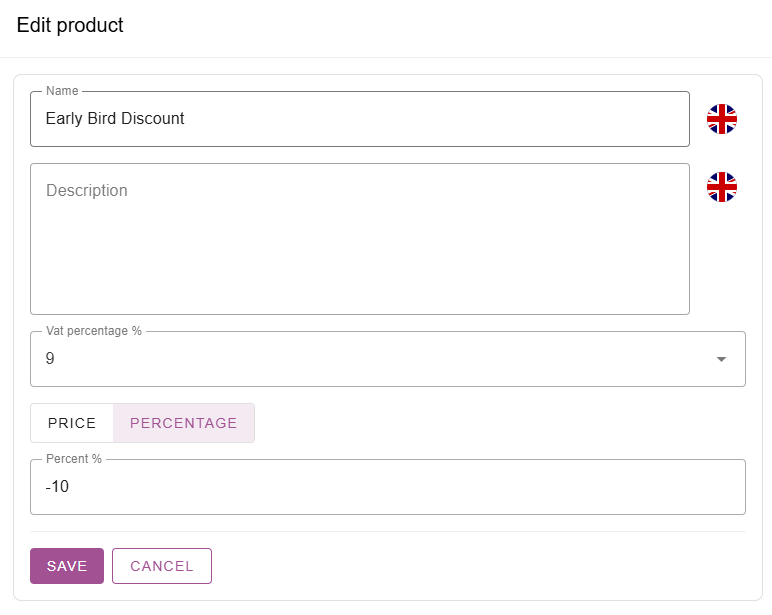
Give the product a name, such as “Early Bird Discount”. After naming the product, you can set up a the VAT % and discount price. You can set the price as “per night” discount, a one time discount or a percentage discount.
A percentage is easiest, because it’ll adjust based on the total cost of the reservation. Make sure you enter a negative amount, otherwise the discount will be an added costs:
Adding conditions to the product
After saving the product, you can select it to add to the Discounts tab of the accommodation. The Early Bird Discount is then added as a discount product. Discounts are automatically applied to a reservation, if the conditions are met.
When you click on “the little arrow on the righthand side of”Add condition” under the product, you can set various conditions:

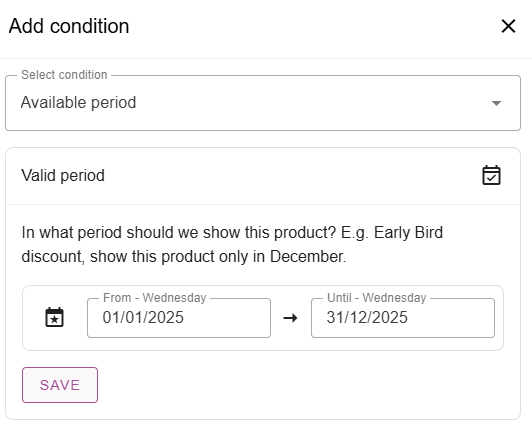
First select the condition “Available period” and then select the dates you want guests to receive the discount. For example select 01/01/2025 until 31/21/2025 for guests will get the discount if they make a reservation in 2025:
If your campground is still open for the currect season and it’s still possible to arrive in 2025, but you don’t want guests to get the discount if they’re making a reservation with an arrival in 2025, you’ll have to add another condition.
Select “Period” and then set the date to for example 01/03/2026 until 31/12/2026 and add an “overlap” period:
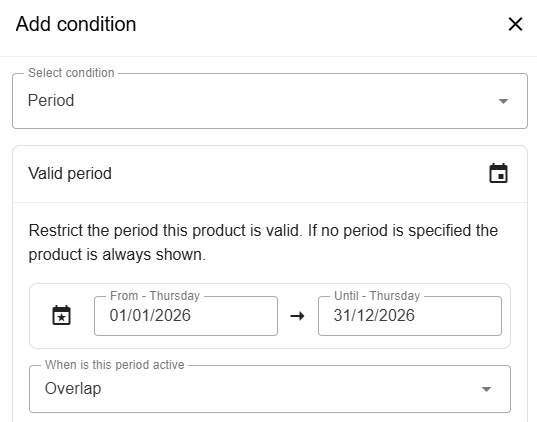
Now the discount will be applied to all reservations made in 2025 that are arriving and/or departing between March and December 2026:

Copying the product to other accommodations
After you’ve set up your product, you might want to also set it up for other accommodations.
By clicking on the “accommodation icon” to the righthand side of the prduct, you can open up a menu where you can select or deselect accommodations:

The product and all the settings you’ve just set up, are then immediately set up for your other accommodations as well.
 English
  Dutch
Dutch  German
  French
  Spanish
  Portuguese
  Italian
  Finnish
  Danish
  Bulgarian
  Swedish