
How does the Scan Document work?
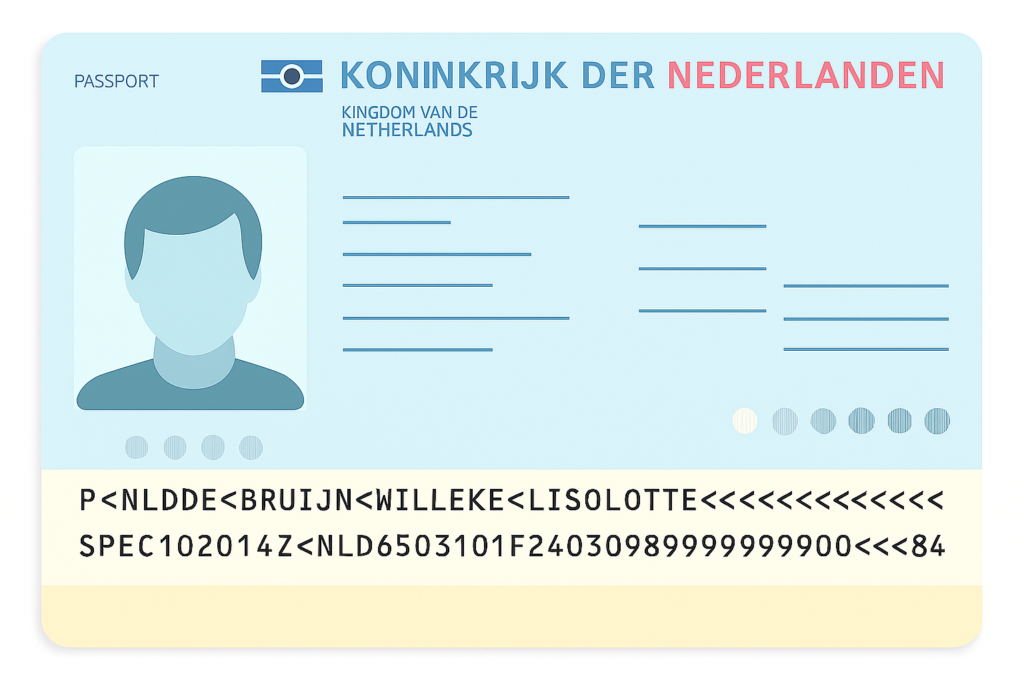
The Scan Document tool is designed to assist and simplify the process of filling in guest details. It allows you to scan a guest’s official document (such as a passport, ID card, or driver’s license), and automatically extracts the necessary data using MRZ (Machine Readable Zone) recognition technology.
This ensures greater speed, accuracy, and convenience, reducing manual input and potential errors. This article explains everything step by step.
What is MRZ and how does it work ?
MRZ (Machine Readable Zone) is a section found on most official travel documents, such as passports, ID cards, and visas. It typically consists of two or three lines of text encoded with personal and document information, printed in a special OCR-readable font.
When the Scan Document tool captures an image of the MRZ, it uses OCR (Optical Character Recognition) technology to extract the data automatically. This ensures fast, accurate input, so no typing required!
Where to find the Scan Document?
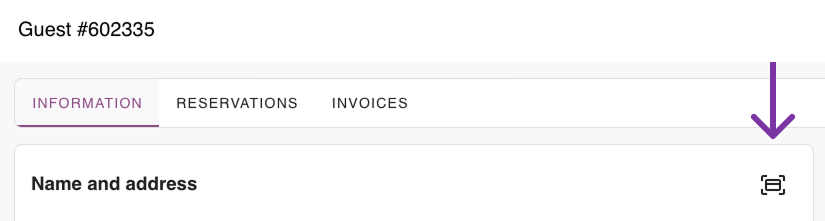
You can access the new document scanning feature in two places. First, in the form for creating a new reservation. Just look for the scan icon shown below:

You’ll also find the icon in the Guest/Information form.
A step-by-step guide
When you click the icon, a popup will appear asking for camera access permission.
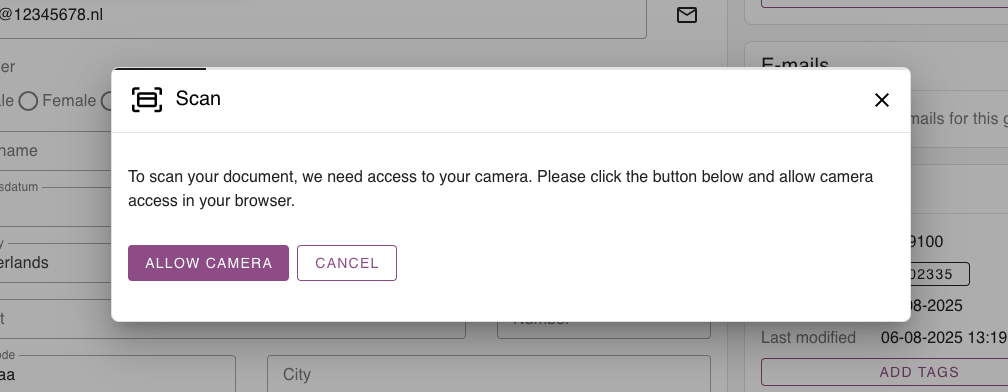
This step is essential, as the MRZ code is read directly using your device’s camera. A browser prompt will then appear, allowing the user to choose between allowing or denying access.
Once access is granted, a new popup will open displaying the camera view for scanning the document.
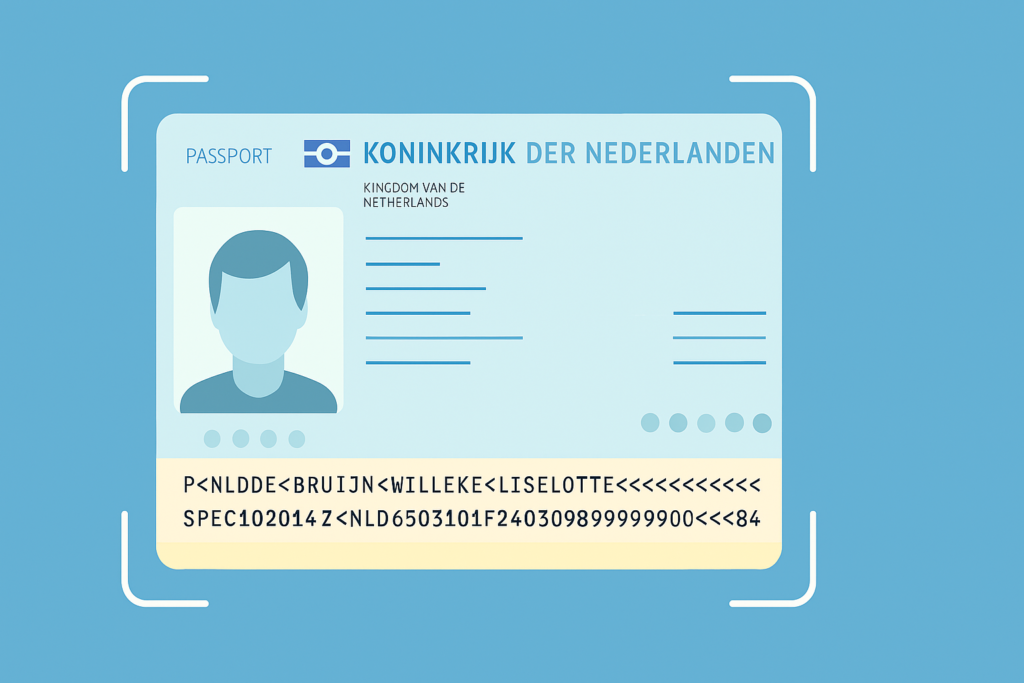
If the scan is successful, the guest form will be automatically filled in with the extracted data, updating the fields:
- First name
- Last name
- Gender
- Date of birth
- Coutntry
- Identification number
- Identification type
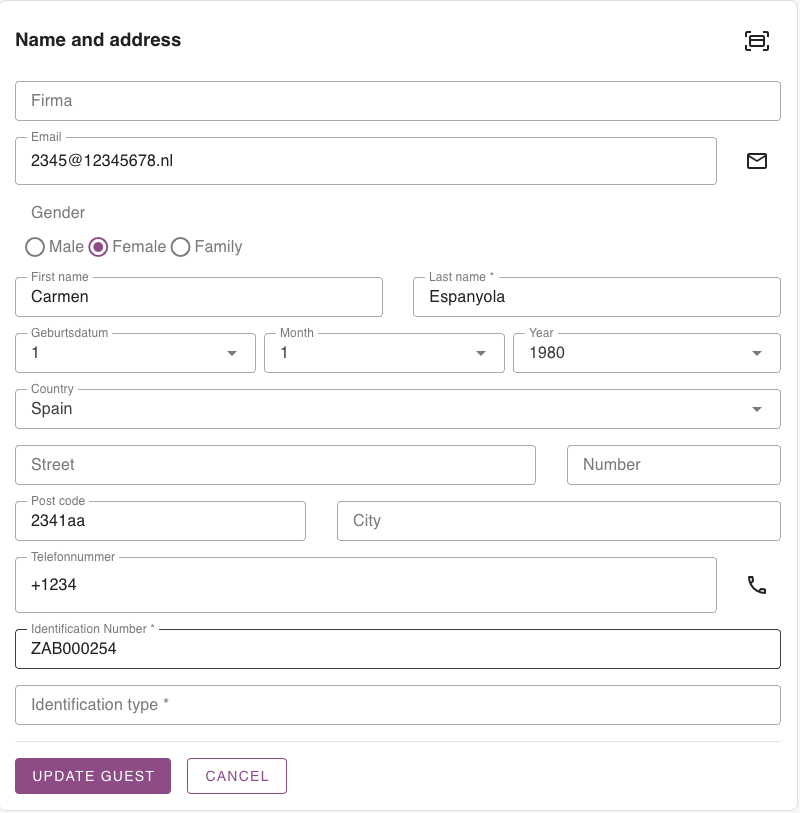
All set! See how simple it is?
With this, the fields are automatically filled in, saving time when creating a new reservation or registering a new guest. Besides speeding up the process, this feature helps prevent typing errors and reduces the chances of miscommunication between the camping site and the guest.
Error message
While the Scan Document tool is designed to be fast and reliable, certain issues may occur depending on the device, browser, or document quality.
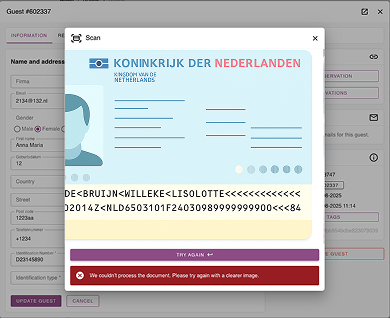
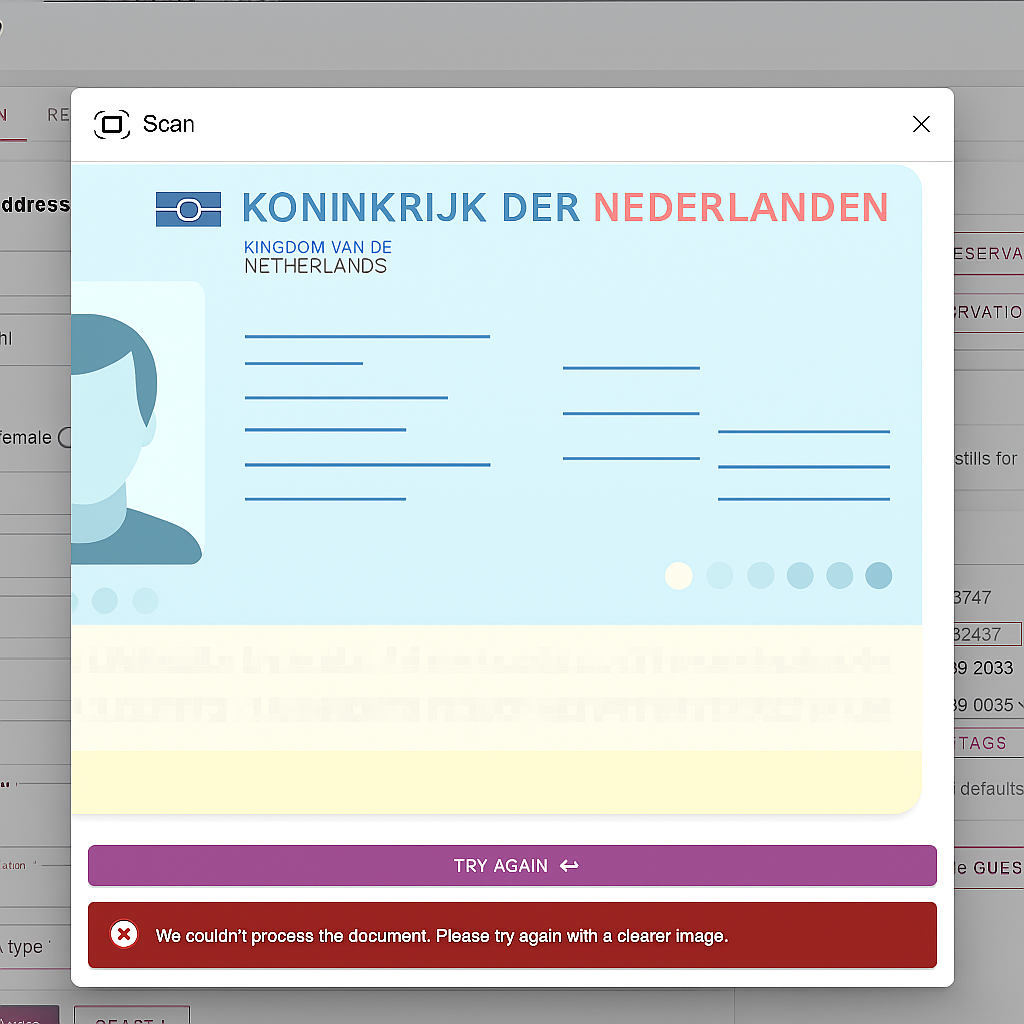
Below are the most common scenarios and what they mean:
- Camera access denied
If the user denies camera access (either temporarily or permanently), the tool won’t be able to scan the document. In this case, an error message will appear with instructions to enable camera access in the browser settings. - Poor document visibility
If the document is blurry, out of frame, or poorly lit, the MRZ section may not be recognized correctly. The tool will show a message suggesting the user try again with a clearer image. - Incomplete or invalid MRZ
If the MRZ is present but too short, missing fields, or formatted incorrectly, the scan will fail. The system will prompt the user to adjust the document and rescan. - Service temporarily unavailable
If the scanning service is momentarily overloaded or unavailable, the user will be informed and encouraged to try again later. - Unrecognized format or unsupported document
Only official government-issued IDs with MRZ sections (like passports, national ID cards, and driver’s licenses) are supported. Other documents may not be recognized or return valid data.
In any of these cases, clear and helpful error messages will be displayed on screen, and the user can attempt to rescan the document.
To ensure successful document scanning, it’s important to follow a few simple recommendations:
- Make sure the environment is well-lit when capturing the image (natural light often works best)
- Ensure the document is fully aligned within the highlighted scanning area on the screen.
- The document should be in good physical condition, without folds or stains, and the MRZ (Machine Readable Zone) code must be clearly visible and legible.
By following these guidelines, the scanning process will be fast, accurate, and hassle-free — avoiding rework and ensuring a smooth experience for both you and your guest.
Final thoughts
The Scan Document tool was created to bring more agility, accuracy, and convenience to your daily operations. By automating the process of filling in guest information, it minimizes typing errors, saves valuable time, and enhances the overall guest experience. Whether you’re managing a new reservation or updating a guest profile, this tool is here to simplify the process, so you can focus more on welcoming your guests and less on manual data entry.
Want to see how it works? Watch our quick video walkthrough that shows exactly how to use the new feature, step by step, here.
 English
  Dutch
Dutch  German
  French
  Spanish
  Portuguese
  Italian
  Finnish
  Danish
  Bulgarian
  Swedish